Bu yazı henüz çevrilmedi, İngilizce sürümü aşağıda.
How to set up a Minecraft Java server properly in 2026
You can have a Minecraft Java server running in ten minutes. You can also have one that lags every evening, gets griefed by a stranger who found the address, and loses a week of building to a bad shutdown. The difference is a handful of decisions made on the first day. This guide walks through them in order, with the commands, and says where each number comes from.
It assumes a Linux machine you control (a home server, a VPS, or a hosted game server where you can edit files). If you would rather skip the machine part, a hosted Minecraft server gives you the same files and console from a panel, and there is a free one to try before you spend anything. Everything below applies either way.
1. Pick the software: vanilla or Paper
Mojang's own server.jar is the reference implementation, and it is perfectly fine for a few friends and no plugins. Paper is a fork of it that keeps the gameplay the same and rewrites many hot paths for speed, and it adds plugin support. For anything beyond a small private world, Paper is the usual starting point. Purpur is a further fork of Paper with extra gameplay options; start with Paper and move only if you need a Purpur setting.
Download the build for your Minecraft version from the Paper downloads page and put it in an empty folder, for example ~/minecraft/paper.jar.
2. Install the Java the version needs
Java is the part people get wrong, because the requirement changes with the game version. According to the Paper getting started guide, Minecraft 1.20 to 1.21.11 needs Java 21, and the new numbering starting at 26.1 needs Java 25. The Minecraft wiki server tutorial agrees: Java 25 for 26.1, Java 21 from 1.20.5, Java 17 before that.
Check what you have:
java -version
If it prints an older major version than the table requires, install a newer one before anything else. Paper's Java installation page lists the options per system. Running a new game version on an old Java gives an error at startup, not a subtle bug, so you will know quickly.
3. First start and the EULA
Run the jar once:
cd ~/minecraft
java -Xms4G -Xmx4G -jar paper.jar --nogui
That command is the one in the Paper guide. --nogui stops the vanilla server window from opening, which is what you want on a machine without a screen. The first run stops quickly and writes eula.txt. Open it, read the Minecraft EULA it points to, and if you agree, change eula=false to eula=true. Start again and the world is generated. The default port is 25565, set by server-port in server.properties.
4. Memory: how much, and what to leave out
-Xms is the heap the JVM starts with, -Xmx is the most it may grow to. Setting them equal avoids the JVM resizing the heap while players are online. The important rule, from the PaperMC documentation on Aikar's flags: do not give Java all the memory the machine or plan has. On an 8 GB host their advice is about 6500 MB, because Java uses memory beyond the heap and the system needs some too.
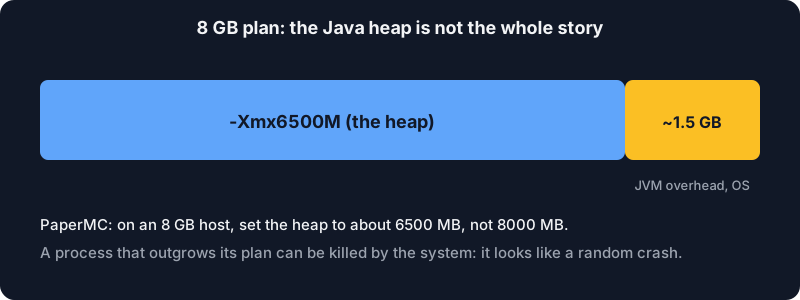
Do not read the same page as "you need 10 GB". Their line is a recommendation for servers with plenty of memory to spare, and the same page says gains plateau. A small private world runs on much less, and we go through realistic figures in how much RAM a game server really needs.
5. JVM flags, and where they come from
The most copied set of flags is Aikar's, documented by PaperMC. For a 10 GB heap, the documented command is:
java -Xms10G -Xmx10G -XX:+UseG1GC -XX:+ParallelRefProcEnabled \
  -XX:MaxGCPauseMillis=200 -XX:+UnlockExperimentalVMOptions \
  -XX:+DisableExplicitGC -XX:+AlwaysPreTouch -XX:G1NewSizePercent=30 \
  -XX:G1MaxNewSizePercent=40 -XX:G1HeapRegionSize=8M \
  -XX:G1ReservePercent=20 -XX:G1HeapWastePercent=5 \
  -XX:G1MixedGCCountTarget=4 -XX:InitiatingHeapOccupancyPercent=15 \
  -XX:G1MixedGCLiveThresholdPercent=90 -XX:G1RSetUpdatingPauseTimePercent=5 \
  -XX:SurvivorRatio=32 -XX:+PerfDisableSharedMem -XX:MaxTenuringThreshold=1 \
  -Dusing.aikars.flags=https://mcflags.emc.gs -Daikars.new.flags=true \
  -jar paper.jar --nogui
What these flags do, in plain words: they select the G1 garbage collector, aim for pauses of at most 200 ms, size the young generation generously because a game server creates many short-lived objects every tick, and pre-touch the heap at startup so the first minutes are not slowed by the system handing out pages. -Dusing.aikars.flags only tags the process. You change -Xms and -Xmx to your own value and leave the rest.
A fair warning: flags are not a magic wand. If the server lags because of a plugin or a huge view distance, no flag set fixes it. Measure first (the /tps command shows how the server keeps up with its 20 ticks per second) and change one thing at a time.
6. View distance and simulation distance
These two lines in server.properties decide most of your CPU and bandwidth bill. The Paper reference describes them:
view-distanceis how many chunks around each player the server sends to the client (a radius, not a diameter), from 3 to 32.simulation-distanceis how far from a player living entities are updated, with the same range.
Both default to 10. The area is a square, so the number of chunks per player is (2 x distance + 1) squared, and that grows quickly:
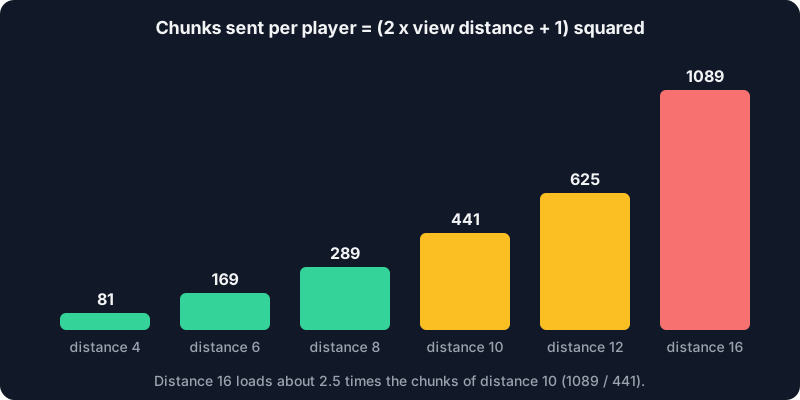
Going from 10 to 16 multiplies the chunks sent by about 2.5. For a small server, a view distance of 8 and a simulation distance of 6 is a sensible starting point: players barely notice, and the server notices a lot. Raise them later if the numbers allow it.
7. Online mode and the whitelist
Leave online-mode=true. It makes the server check each player against Minecraft's account database, which is what stops someone from joining under another player's name and inheriting their operator rights. Turning it off is the single most common cause of "someone got admin on my server" stories.
For a private server add a whitelist. In server.properties:
white-list=true
enforce-whitelist=true
enforce-whitelist kicks players who are not listed when the list is reloaded. Then, from the console or as an operator in game:
whitelist add SomePlayer
whitelist list
The Minecraft wiki tutorial also documents op <player>, which edits ops.json. Give operator rights to as few people as possible, and never to a name you cannot verify.
8. Backups that do not corrupt the world
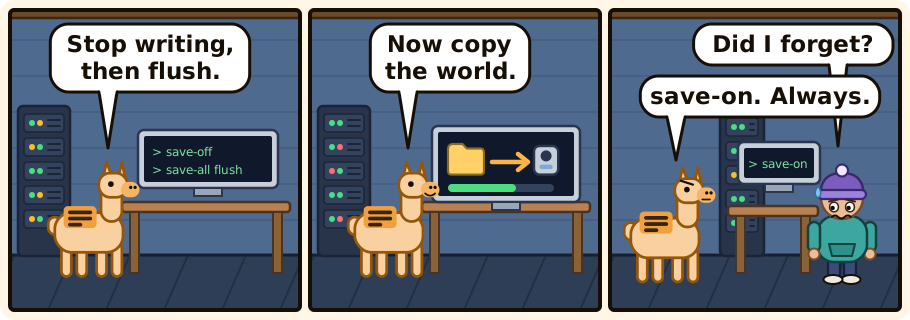
Copying a world folder while the server writes to it can give you a backup that is half old and half new. The server has commands for exactly this, documented on the Minecraft wiki. The order is:
save-off
save-all flush
then copy the world folder, then:
save-on
save-off stops writing world files, save-all flush writes everything to disk immediately (with a short freeze), and save-on resumes. Note that save-off is reset on restart, so a crash mid-backup does not leave saving disabled forever. Automate it with a script, copy the result somewhere that is not the same disk, and once in a while restore one into an empty folder to prove it works. Backups that actually restore goes through that in detail.
9. Keep it running and keep it updated
Run the server as a normal user, not root, and start it with a supervisor so that it comes back after a reboot. On a plain Linux machine, a systemd unit does that; the same idea for a bot is shown in hosting a Discord bot 24/7. Update Paper when a new build for your version appears, and read the release notes before changing the Minecraft version itself: a world opened by an older game version after being upgraded cannot be reliably downgraded. Take a backup first, always.
The short checklist
- Paper, and the Java the version needs (25 for 26.1, 21 for 1.20 to 1.21.11).
- Heap set below the memory you actually have, with the documented flags.
- View distance 8 and simulation distance 6 to start, raised only with measurements.
online-mode=true, a whitelist, very few operators.save-off,save-all flush, copy,save-on, and a restore test.
If you would rather not run the machine, Alama's game servers put the same files, console and SFTP in a panel. Either way, the choices above are the same ones.