이 글은 아직 번역되지 않았어요. 영어 버전을 보여 드려요.
Browse the Steam Workshop from your game panel
Adding Steam Workshop content to a game server used to mean this: open the Workshop in your browser, copy a number, find the right startup field in the panel, paste, restart, and hope. If the number was wrong, nothing told you. The server simply started without your content.
The Workshop tab in the Alama game panel (panel.alama.host) is built to remove that guesswork. You find an item, the panel checks it, and only then does it write your choice down.
Where you find it
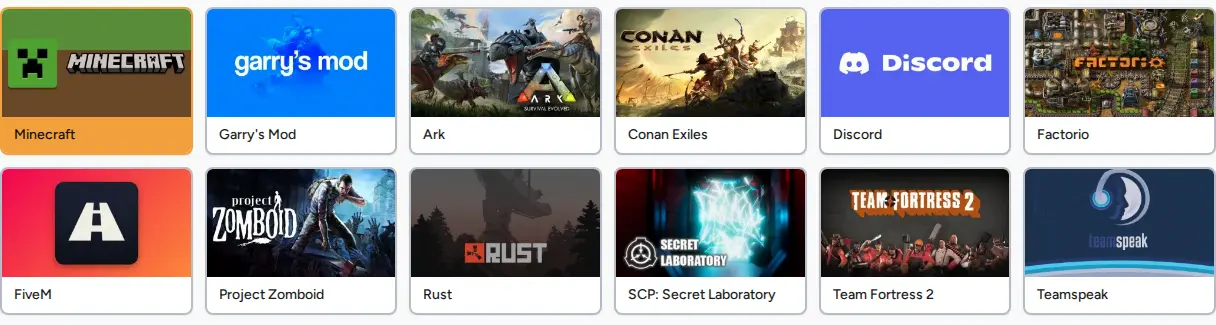
The tab appears on servers of these games, when the server is set up to load Workshop content:
- Garry's Mod
- ARK: Survival Evolved
- Team Fortress 2
- Counter-Strike 2
- Project Zomboid
- Don't Starve Together
- Unturned
- Insurgency
- Barotrauma
- tModLoader
- Conan Exiles
If you can pick one of them when you order a server, the Workshop is within reach.
Three ways to find something
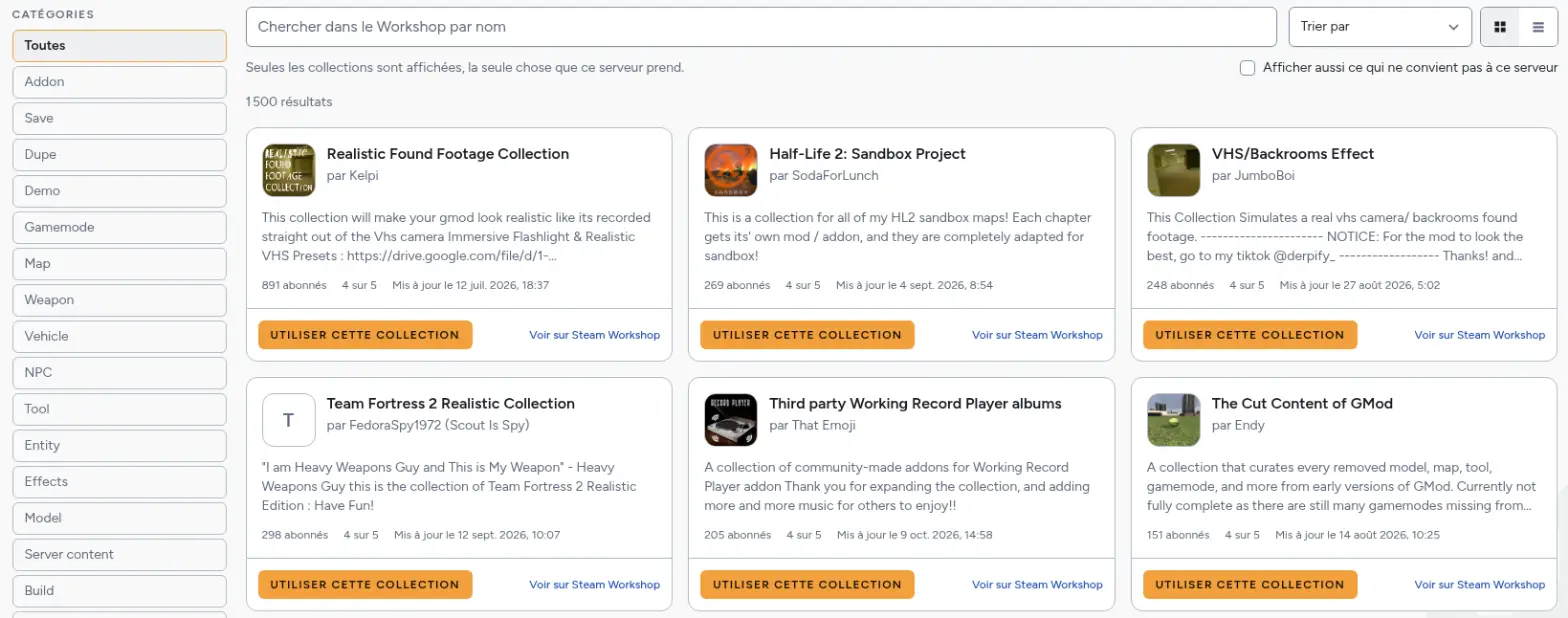
Search by name. Type a few letters and the list follows as you type. With nothing typed, you see what is rising on the Workshop for your game.
Browse by category. Narrow the list with the categories on the side, then sort it: most subscribed, trending, newest or recently updated. You can switch between cards and a list.
Paste a link. Already know what you want? Paste the address of a Workshop page, or just its number. You can paste several at once, one per line.
Each card shows the picture, the author, a short summary, the number of subscribers, a rating and the date of the last update. A link opens the item's own Steam page if you want to read more.
The panel answers before you save
This is the part that matters. Before writing anything, the panel looks at the item and tells you what it is and whether your server can use it. It catches the four mistakes that used to fail in silence:
- An item from another game. Workshop pages look alike from one game to the next, and a bare number tells you nothing. The panel knows which game the item belongs to, and refuses a mismatch.
- A single item on Garry's Mod. A Garry's Mod server downloads a collection, not loose items. If you paste one addon, the panel says so and explains how to make a collection.
- A hidden item. An item set to private or friends-only opens fine in your browser, because you are signed in. The server downloads anonymously and will never see it. The panel tells you before it becomes a mystery.
- A deleted item. If Steam removed it, it will not come back, and the panel says so.
Items that do not fit are marked "Not for this server", with the reason. You can tick a box to show them anyway, but you cannot add them.
What each game takes
Games do not all want the same thing, and the tab follows each one:
| Game | What you choose |
|---|---|
| Garry's Mod | One collection (a new one replaces the previous one) |
| ARK: Survival Evolved | A list of mods, in loading order |
| Team Fortress 2, Counter-Strike 2 | One map, which the server starts on |
| Project Zomboid, Don't Starve Together, tModLoader, Conan Exiles | A list of mods |
| Unturned | Mods and maps |
| Insurgency | Maps, skins and sounds |
| Barotrauma | Mods and submarines |
On ARK, the order matters: when two mods change the same thing, the later one wins. The tab lets you move items up or down.
Nothing happens until the next start
Choosing something does not download anything. You press Save, and the panel writes your list. The game itself downloads the content the next time the server starts. So restart the server after saving, and give the first start a little longer than usual if the download is big. The panel warns you about downloads over 500 MB.
Before saving, a yellow box reminds you that the list has changed, and "Undo the changes" takes you back to what the server loads today.
A few habits that help
- Start the server once before you open the tab if the game keeps its settings in a file: the game creates that file on its first start.
- Remove a mod that is too old if the server stops starting after a game update. The tab works with the server stopped.
- Check your rights if you do not see the Save button. The owner of the server decides who may change the list, in the Users tab.
If you do not have a server yet, pick a game and a tier. If you want the full details, the tab carries a "Read the guide" link at its top right.